In Yuki, you can send sales invoices, quotations and reminders to your customers by email. You set this up with a short wizard in the sales settings. On this page, you will find step by step what you need to set up and what each setting does.
TABLE OF CONTENTS
- 1. Go to the sending settings
- 2. Choose how to send invoices and quotations
- 3. Set up your sender email address via the Yuki server (recommended)
- 4. Send via your own SMTP server
- 5. Check or change the status of your email settings
- 6. Copies and UBL attachment
1. Go to the sending settings
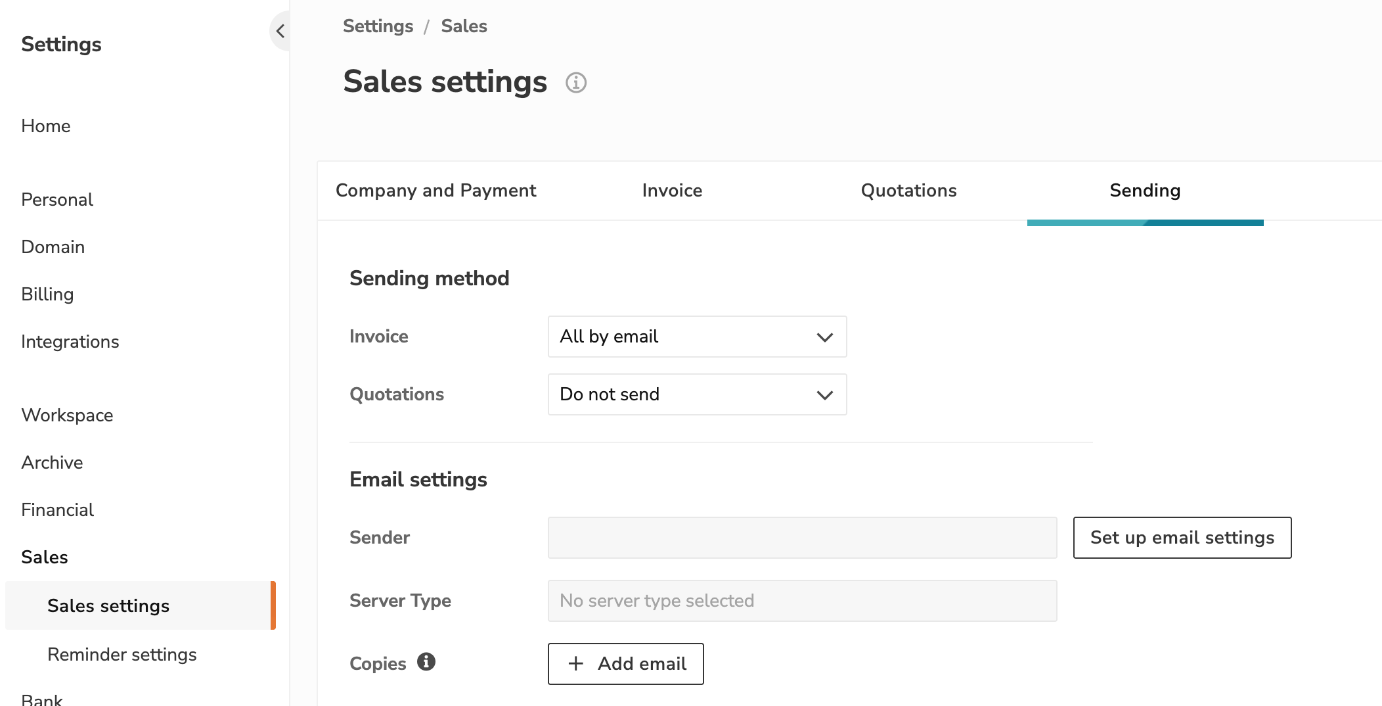
- Go to «Settings» > «Sales» > «Sales settings».
- Click the «Sending» tab.
You now see three blocks: «Sending method», «Email settings» and «UBL».
2. Choose how to send invoices and quotations
Under «Sending method», you choose separately for «Invoice» and «Quotations» how Yuki sends them:
- All by email: Yuki sends everything by email.
- All by regular mail: Yuki sends everything by post.
- By email when possible: by email if an email address of your customer is known, otherwise by post.
- Do not send: Yuki does not send anything. You deliver the invoice or quotation yourself.
Your choice is saved immediately. There is no «Save» button.
3. Set up your sender email address via the Yuki server (recommended)
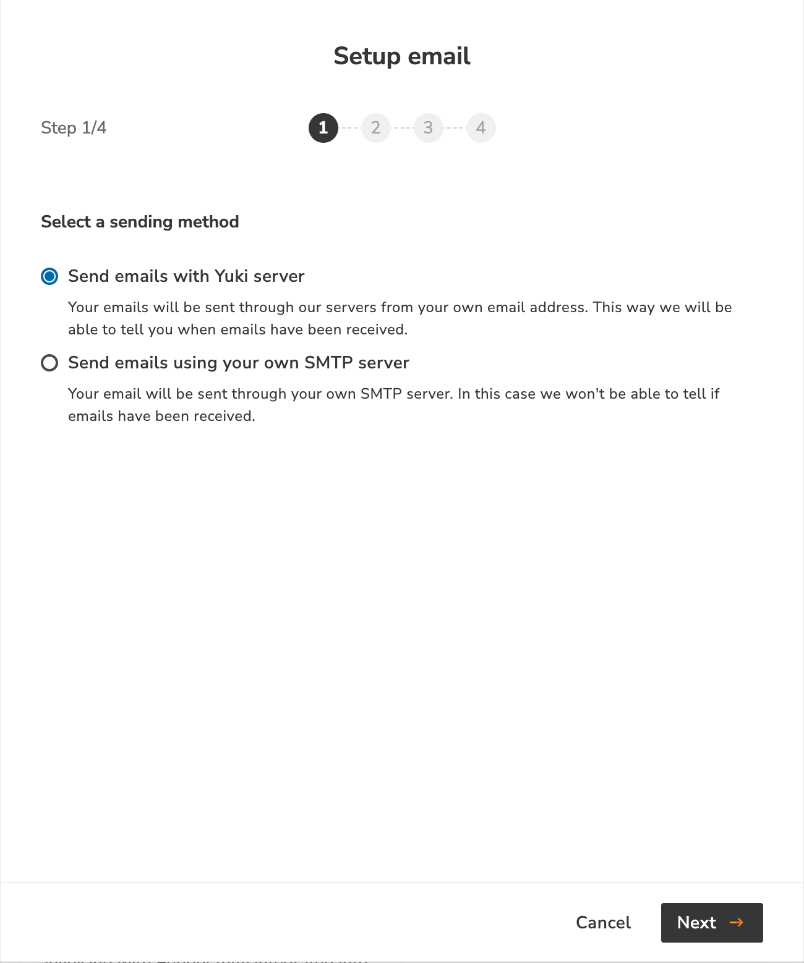
With the Yuki server, your emails are sent from your own email address, but through Yuki's servers. This way, Yuki can let you know when your customer has received the email. You do not need any extra details from your email provider.
Do you use a personal email address such as @gmail.com, @outlook.com or @hotmail.com? Then do not choose the Yuki server, but make a direct connection with your own SMTP server (see step 4). You cannot set up DNS records for such an address, so your emails sent via the Yuki server are more likely to end up in spam.
- Under «Email settings», click «Set up email settings».
The «Setup email» window opens. - Under «Select a sending method», choose «Send emails with Yuki server».
- Click «Next».
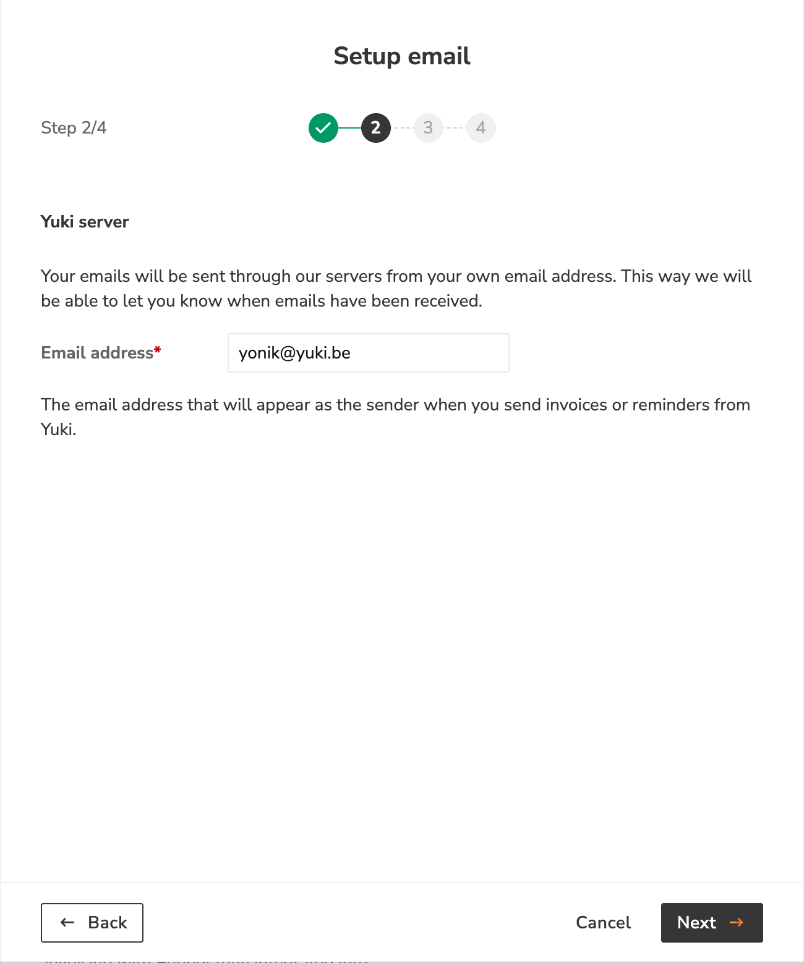
- Under «Email address», enter the address your customer should see as the sender. If your customer replies to the email, the reply arrives at this address.
- Click «Next».
- Yuki sends a confirmation email to the address you entered. Open that email in your mailbox and confirm your address.
No email received? Check your spam folder. After a minute, you can click «Resend email».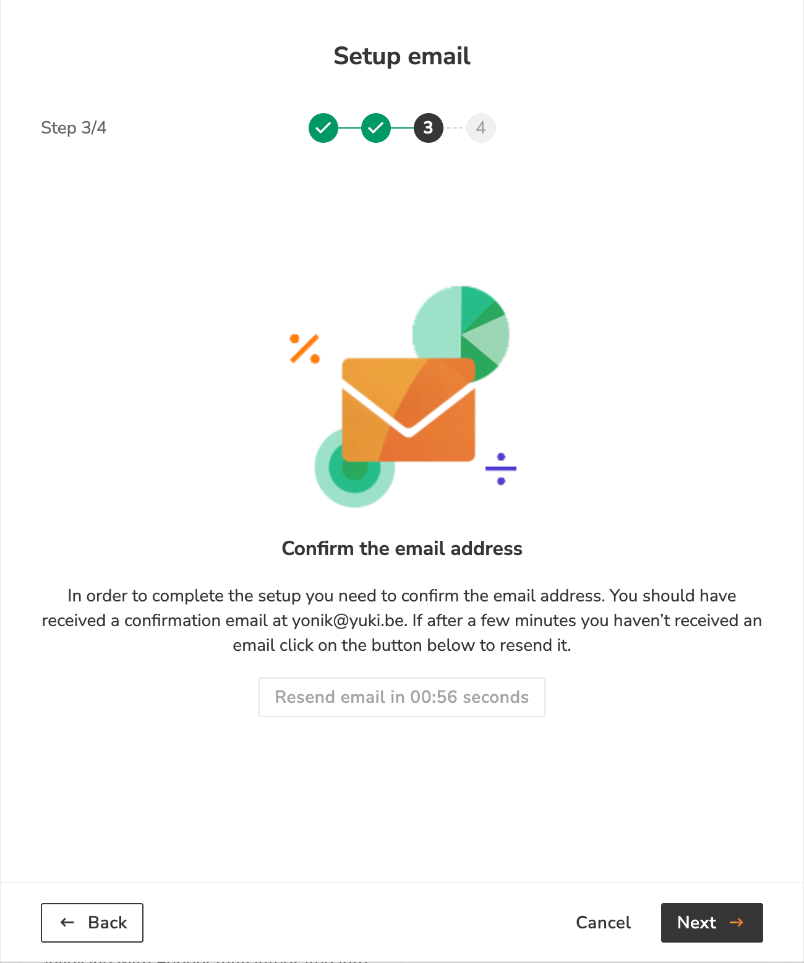
- Click «Next».
- If you have already confirmed your address, click «Refresh». If you see «Email not confirmed», first confirm the email and click «Refresh» again.
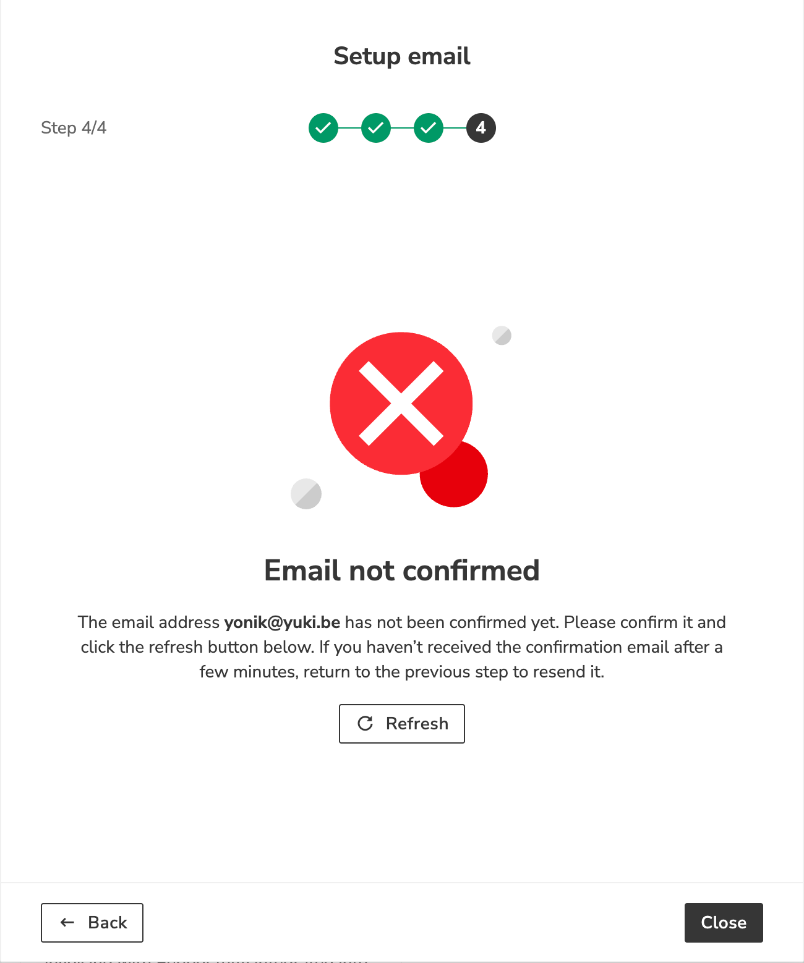
- Click «Close».
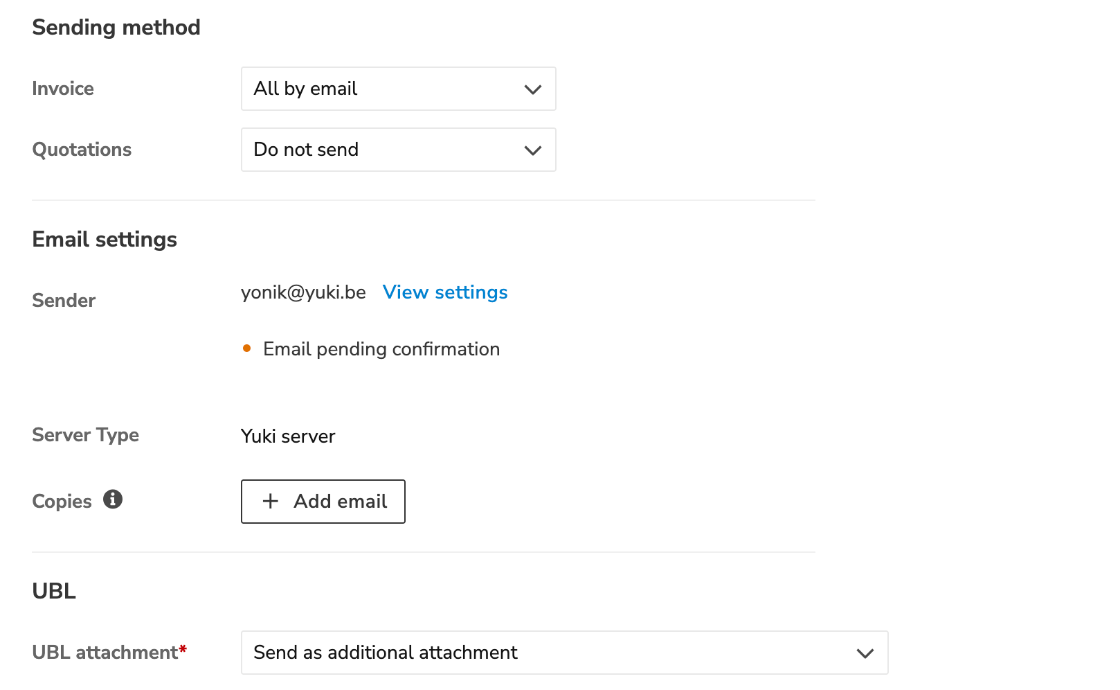
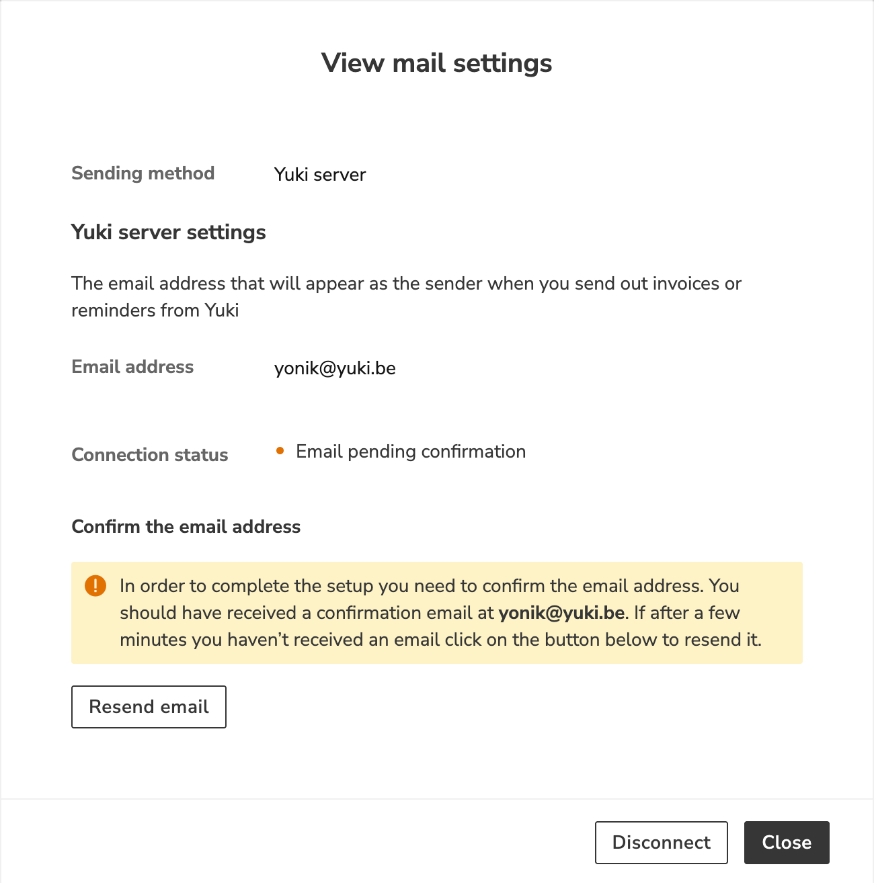
Your settings are saved, even if you have not confirmed your address yet. As long as you have not confirmed it, you see an orange dot with «Email pending confirmation» next to «Sender».
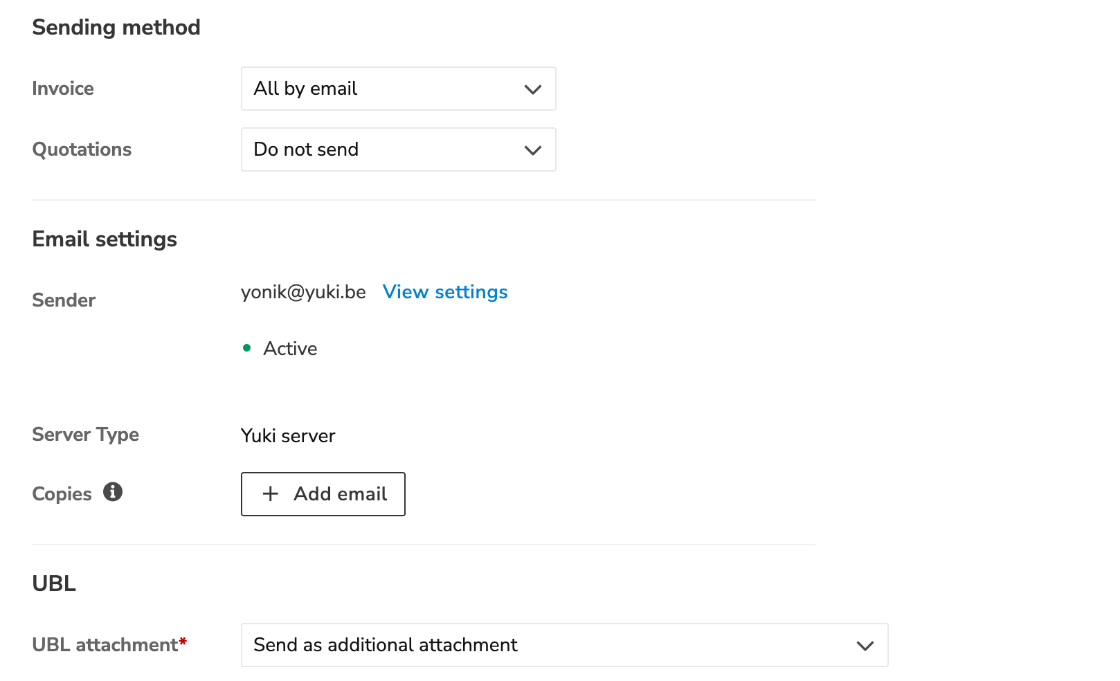
After confirmation, a green dot with «Active» appears. You can now send invoices.
Set up DNS records (recommended with your own domain)
Do you use an email address with your own domain (e.g. invoicing@yourcompany.be)? Then have the DNS records of your domain set up. This reduces the risk that your emails are marked as spam or rejected.
- Next to «Sender», click «View settings».
- Under «Setup DNS records (Optional)», click «How to setup DNS records».
- Under «Setup», you see which records your domain needs: the «Domain», the «Type» (TXT or CNAME) and the «Value». Give these details to your hosting provider or IT administrator.
- Under «Status» and «DNS Validation», you see whether each record is in order. «Error» or «Warning» means that the record has not been set up (correctly) yet.
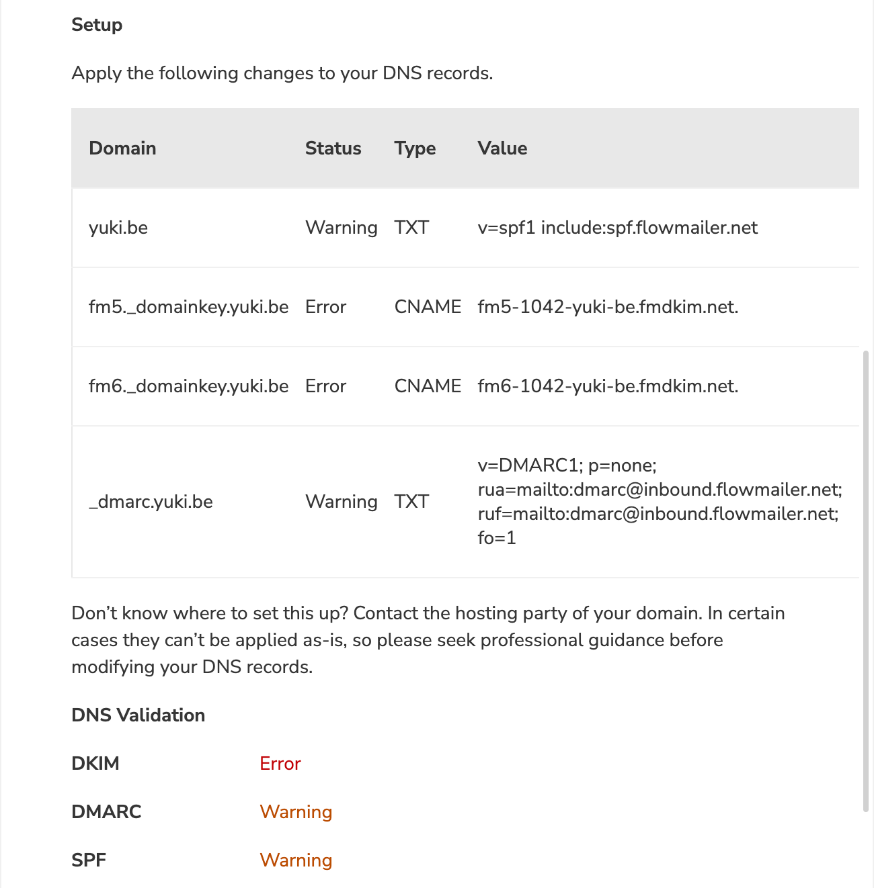
As long as your DNS records are not correct, Yuki shows a general Yuki address as the sender. Replies from your customer still arrive at your own address. A warning for DMARC is not a problem.
The green dot «Active» only means that your address has been confirmed. Whether your DNS records are in order, you can only see under «DNS Validation».
4. Send via your own SMTP server
If you choose your own SMTP server, your emails are sent through the mail server of your own provider. Yuki then cannot check whether your customer has received the email.
This is the recommended choice if you use a personal email address, such as @gmail.com or @outlook.com. You cannot set up DNS records for those addresses.
- Under «Email settings», click «Set up email settings».
- Choose «Send emails using your own SMTP server».
- Click «Next».
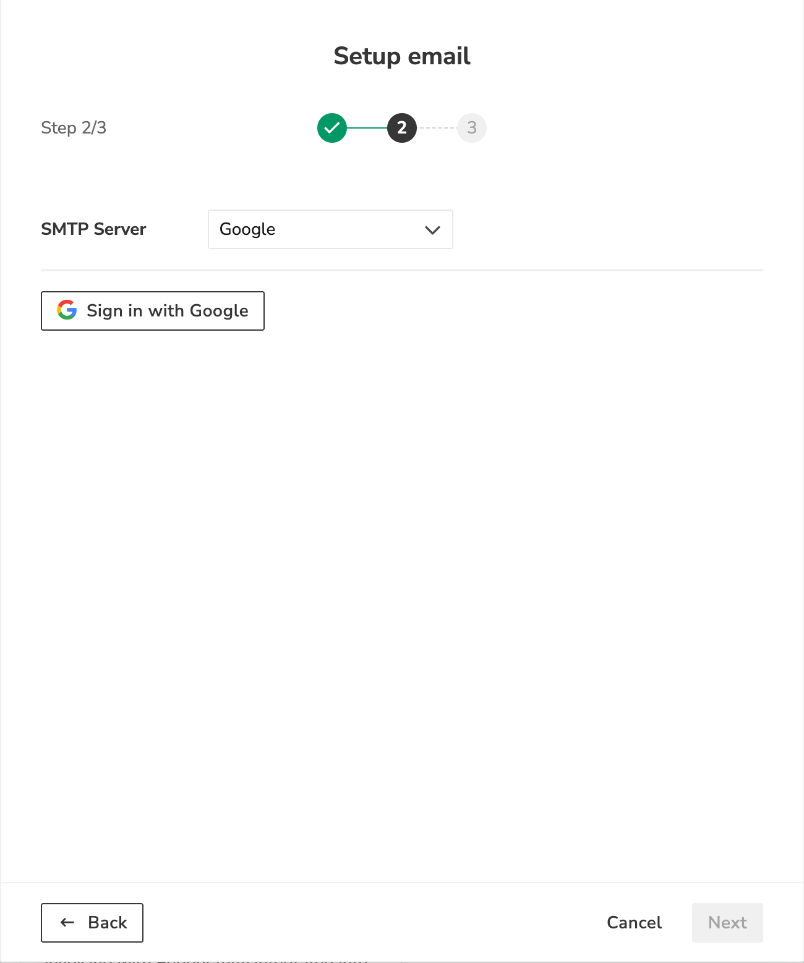
- Under «SMTP Server», choose your provider: «Google», «Microsoft» or «Other».
- Click «Sign in with Google».
- Choose your Google account and give Yuki permission to send emails.
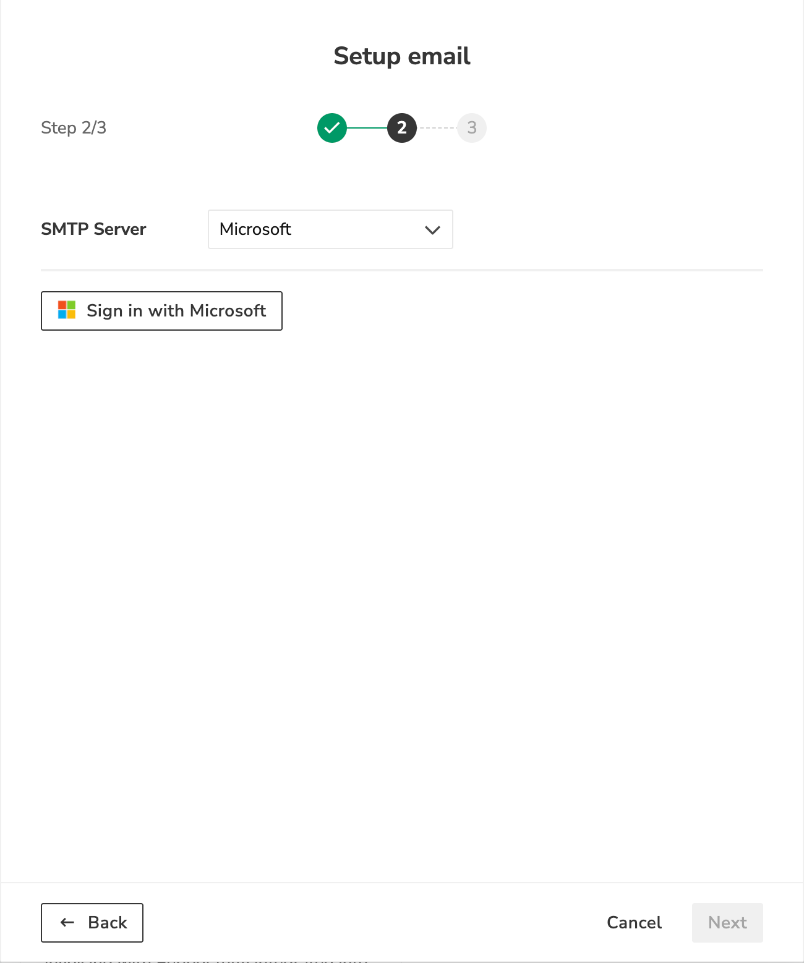
Microsoft
- Click «Sign in with Microsoft».
- Choose your Microsoft account and give Yuki permission to send emails.
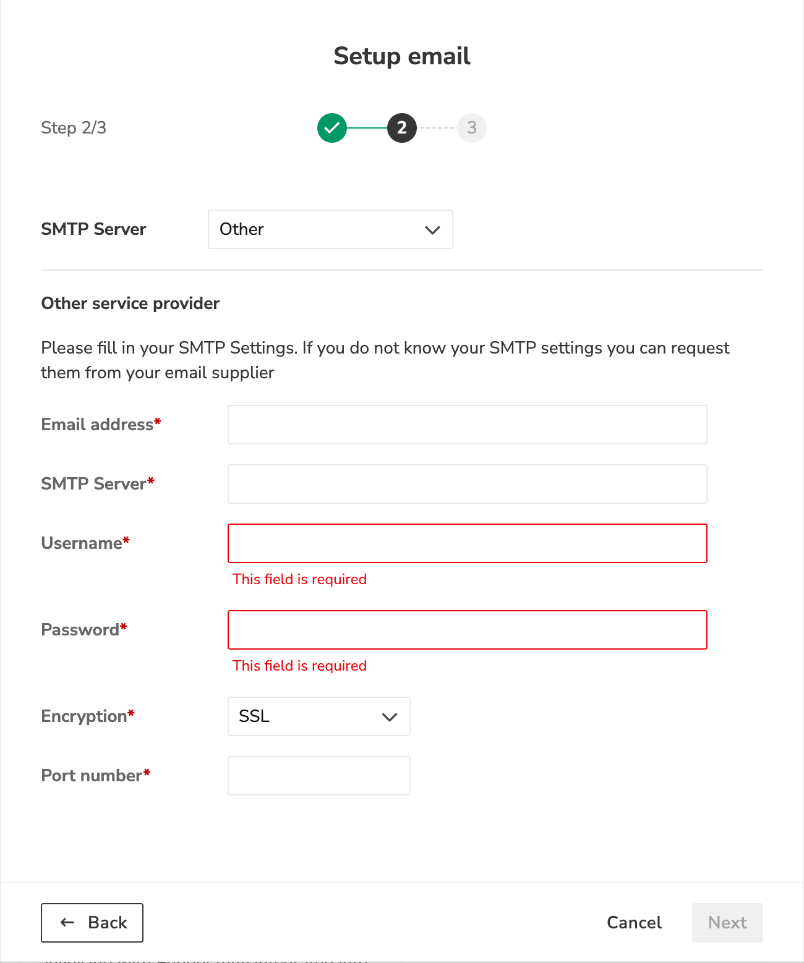
Other
- Enter the details of your email provider: «Email address», «SMTP Server», «Username» and «Password».
- Under «Encryption», choose «SSL» or «TLS» and enter the «Port number». Most providers use port 465 + SSL or port 587 + TLS. In doubt? Ask your email provider.
- Click «Next» and follow the last step of the wizard.
Is two-step verification switched on and do you get the message 'invalid password'? Then create an app password with your provider and use it as the «Password».
5. Check or change the status of your email settings
- Next to «Sender», click «View settings».
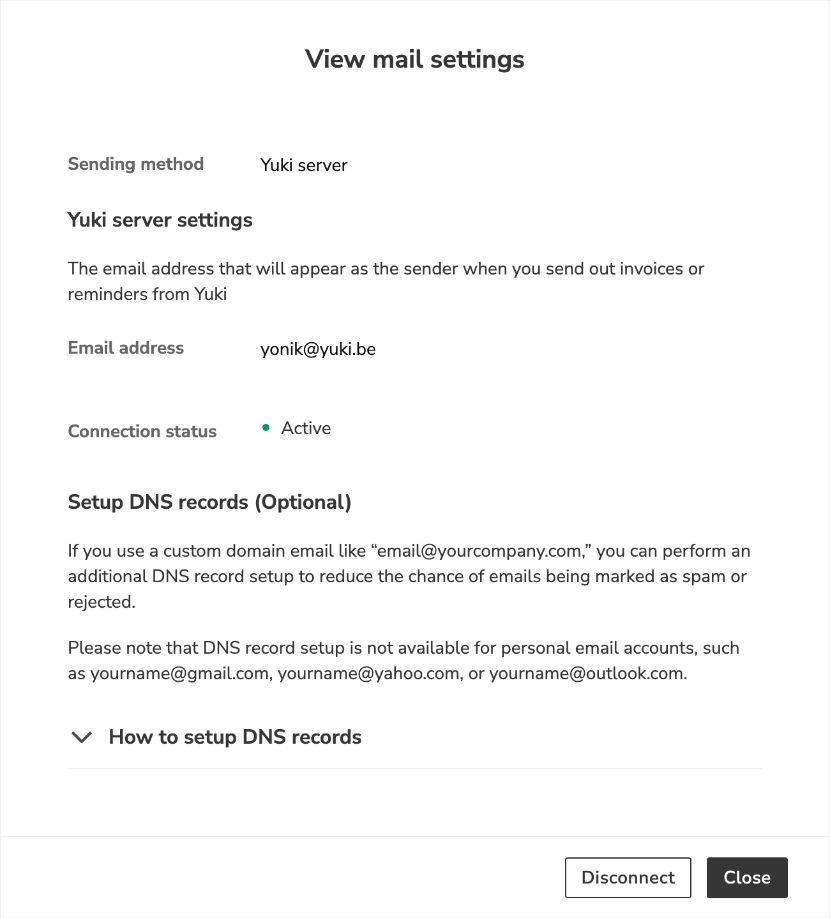
The «View mail settings» window opens. - Under «Connection status», you see whether your address has been confirmed: «Active» (green) or «Email pending confirmation» (orange).
- Not confirmed yet and no email received? Click «Resend email».
- Do you want a different address or a different sending method? Click «Disconnect» and set up your email again via step 3 or 4.
6. Copies and UBL attachment
Copies: click «Add email» to add an email address. That address receives every invoice in CC. Useful if you want a copy of every invoice you send.
UBL attachment: choose whether Yuki sends a UBL file (the electronic invoice format) with the email:
- Do not attach: only the PDF.
- Send as additional attachment: the PDF and a separate UBL file.
- Send as additional attachment (PDF embedded in UBL): the PDF and a UBL file that contains the PDF.
- As only one attachment (PDF embedded in UBL): only a UBL file that contains the PDF.