Via Sales > Invoices, you can find all work lists and overviews of your sales invoices. At the top left, use the drop-down menu to choose the overview you want to see. The lists are divided into three groups. Click an overview to jump straight to its explanation.
- Workflow: Draft invoices and Invoices ready to be sent
- Sent invoices: Outstanding, Overdue and Blocked
- Reports: Invoice history, Activity log, Bulk activity and Queued invoices
Also read what you can do in each overview and how the document viewer works.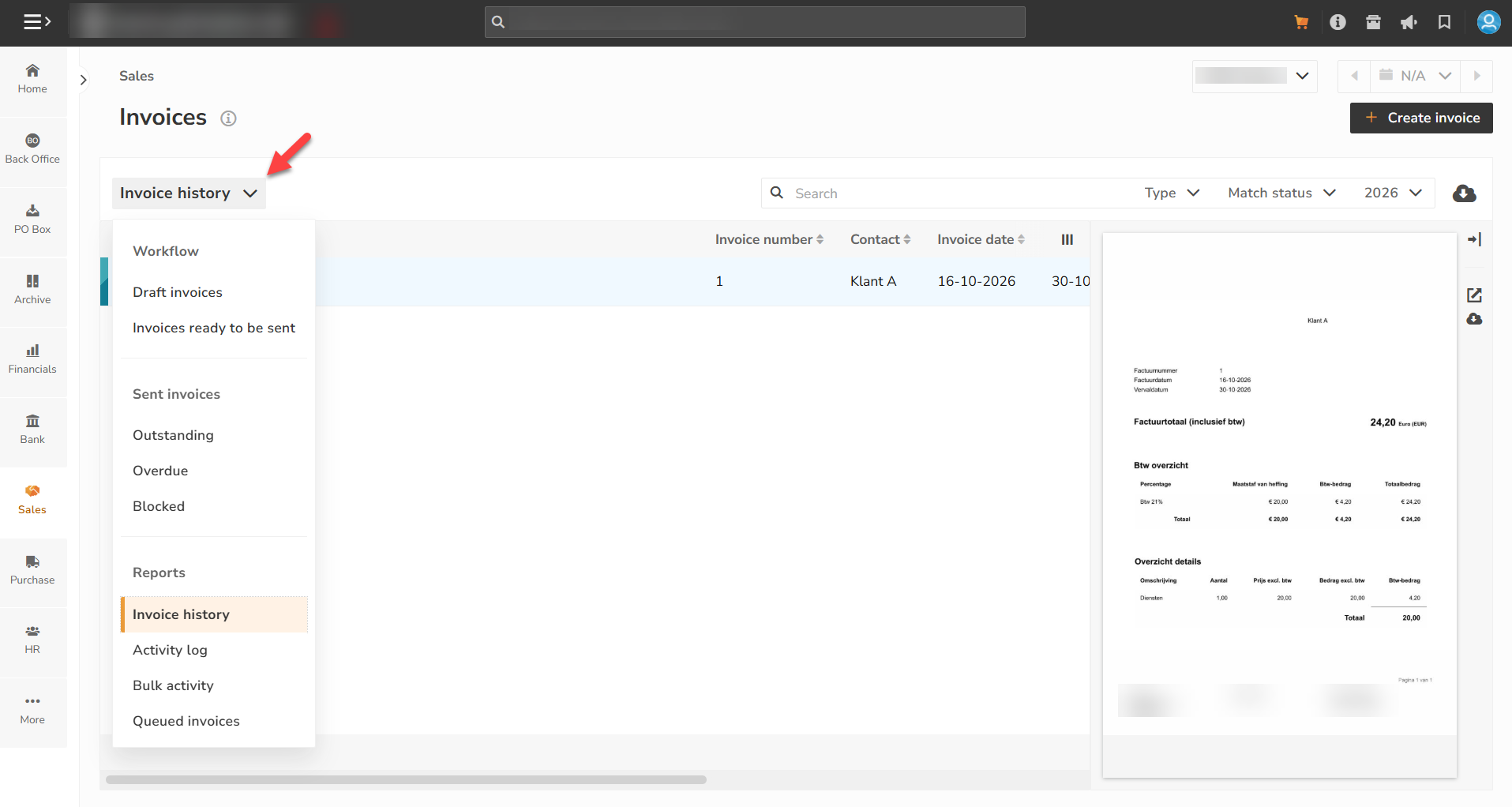
What can you do in each overview?
- Create a new invoice with the Create invoice button at the top right.
- Choose another administration via the drop-down list at the top.
- Search via the search bar and filter with the drop-down lists next to it. The available filters differ per overview, for example Type, Match status or year.
- Download all displayed data as a CSV file or copy it to the clipboard via the cloud button.

- Show or hide columns via the button with the three lines, on the right of the column bar.

- Sort by clicking a column title.
Document viewer
In some overviews, you see a preview of the selected invoice on the right. Click an invoice line to show the invoice in the viewer. With the buttons next to the viewer, you can hide or show the viewer, open the document in a new window or download the document.

Draft invoices
Here you find all sales invoices that you have created but not yet prepared for sending. They have the status Draft and you can still fully edit them.
- Click the subject to open and edit a draft invoice.
- Select one or more invoices. The options Ready to send and Delete then appear at the top. Invoices you prepare for sending move to the list Invoices ready to be sent.

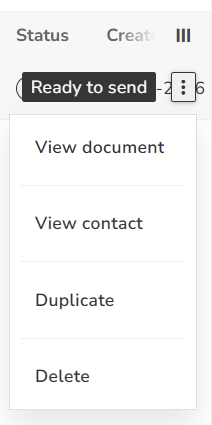
- Via the three dots at the end of the line, you can choose View document, View contact, Duplicate or Delete.
Invoices ready to be sent
Here you find all invoices that are ready to be sent.
- Click the subject to open the invoice. There you can still change the invoice date, the sending method and the e-mail address.
- Do you want to change something else, such as an invoice line? Then first move the invoice back to draft.
- Select one or more invoices and choose Process to send them, Move to draft invoices to put them back in draft, or Delete.

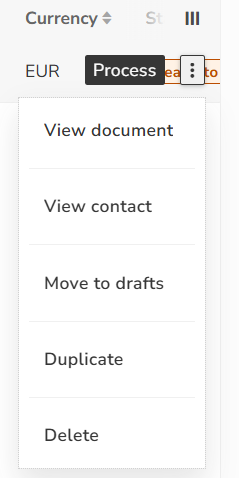
- Via the three dots at the end of the line, you can choose View document, View contact, Move to drafts, Duplicate or Delete.
Outstanding
Here you see all sent sales invoices that have not yet been (fully) paid, even if the due date has not yet passed. At the bottom, you see the total amount of all these invoices.
Overdue
Here you see all unpaid sales invoices whose due date has passed. You can filter by reminder level, Match status and year.
Select one or more invoices to:
- send a reminder via Remind
- change the reminder level via Change reminder level
- stop sending reminders via Block reminders. The invoice then moves to the list Blocked.

Blocked
Here you see all sales invoices for which sending reminders has been blocked. Select one or more invoices and choose Unblock to turn reminders back on.

Invoice history
Here you find all sales invoices of the administration, both paid and unpaid.
Activity log
Here you see all sending actions for invoices and reminders. For each line you see, among other things, the activity type, the sending method, who performed the action, to which e-mail address, the date and the status. You can filter by activity type, sending method and year.
This is also where you can check whether an invoice was delivered via Peppol. Choose Peppol in the sending method filter and check the Status column of the invoice.
Bulk activity
Here you see every time sales invoices were processed and sent in bulk. For each bulk action, you see how many documents were sent by e-mail, by post or via Peppol, how many were not sent, the total amount, and who started the action and when.
Queued invoices
When you process invoices in bulk, they are not all handled at the same time. Invoices that are still in the queue can be found here. As soon as they have been processed, they disappear from this list.