When you sign in via Visma Connect there is a second step: a 6-digit code or a notification on your phone. This article helps you if that step fails.
Where are you stuck?
- My code is refused — start here, this is the most common cause
- I am waiting for a notification or code, but nothing happens
- I can't get past the password screen
- I have a new phone and want to pair it
- I can no longer reach my authenticator app
- I want to add SMS, enter a code less often, or replace my back-up code
Your code is refused
Do you get the message that your code is invalid, even though you typed it correctly? Then almost always your device clock is out of sync. These codes are calculated from the exact time, so one minute of difference is enough.
- Check on your phone that date and time are set to automatic.
- Go to time.is to see whether your clock is accurate.
- If it runs fast or slow, switch on automatic time and request a new code.
Two other things to check:
- Are you using the right entry? Every environment appears separately in your authenticator app. For Yuki, use the Yuki entry, not the one for another Visma product. The codes look alike but are not interchangeable.
- Had the code just expired? A code is only valid for 30 seconds. Wait for a new one and type it in straight away.
You are waiting for a notification or code, but nothing happens
You have entered your password, you are on the screen that asks for your code, and nothing arrives on your phone.
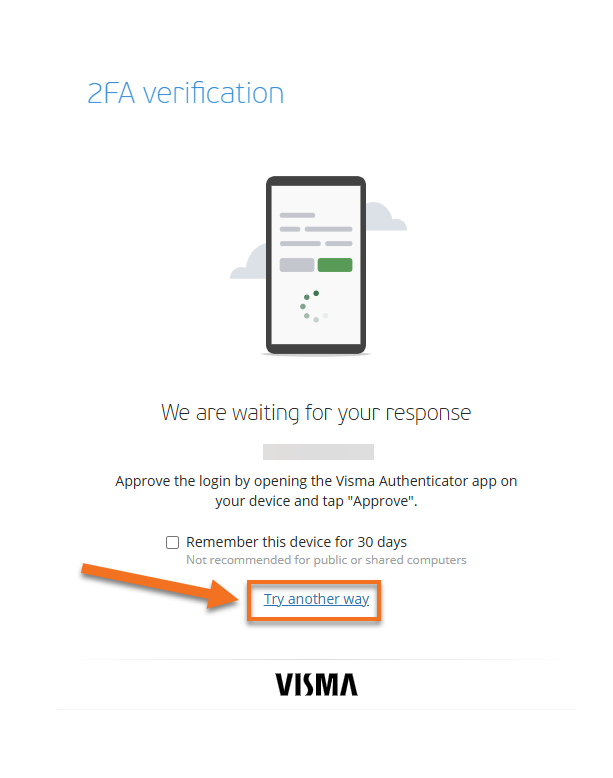
You can always get past this. That screen has a Try another way button. It lets you switch to a different method: the 6-digit code from your authenticator app, SMS if you have added a number, or your back-up code. If the screen waits too long for a push notification, a button also appears to send it again.
Then fix the cause. If no push notification ever arrives, notifications for the Visma Authenticator app are almost always switched off. The app asks for that permission the first time you use it; if it was refused then, no notification will arrive again.
- Open your phone settings and go to the list of your apps.
- Find Visma Authenticator.
- Turn on notifications for that app.
In the meantime you can simply use the 6-digit code from that same app. It works without notifications, and also when you are offline.
You can't get past the password screen
You enter your password on the screen “To continue, you must confirm your identity”, click Sign in, and you stay on that same screen. No notification, no request for a code.
This is not a problem with two-step verification: you never get that far. In almost all cases your browser is still filling in an old password. If you chose a new password when moving to Visma Connect, the old one is often still saved.
- Click the eye icon in the password field to see what is filled in.
- Clear the field completely and type your password yourself.
- If signing in works, let your browser save the new password and remove the old one from your saved passwords.
Can't remember your password? Use Forgot password on the sign-in screen.
Does a wrong password give you a proper “incorrect” message, while the right one gives you nothing? Then your password is not the problem and it is your browser. If it does work in a private window or another browser, that confirms it.
- Click the padlock or the web address icon to the left of the address bar.
- Choose Cookies and site data and delete the data for this site.
- Close your browser completely — every window, not just the tab — and open it again.
If that still does not help, your browser may be blocking third-party cookies. Signing in moves back and forth between Yuki and Visma and needs them. In Chrome you allow them via chrome://settings/cookies for [*.]visma.com and [*.]yuki.be; in Firefox you turn off the shield to the left of the address bar for this site. If the problem hits several colleagues at once, ask your IT administrator — it is then probably set centrally.
Pairing a new device or a new app
You do this yourself, as long as you can still sign in. If you can't, go to You can no longer reach your authenticator app.
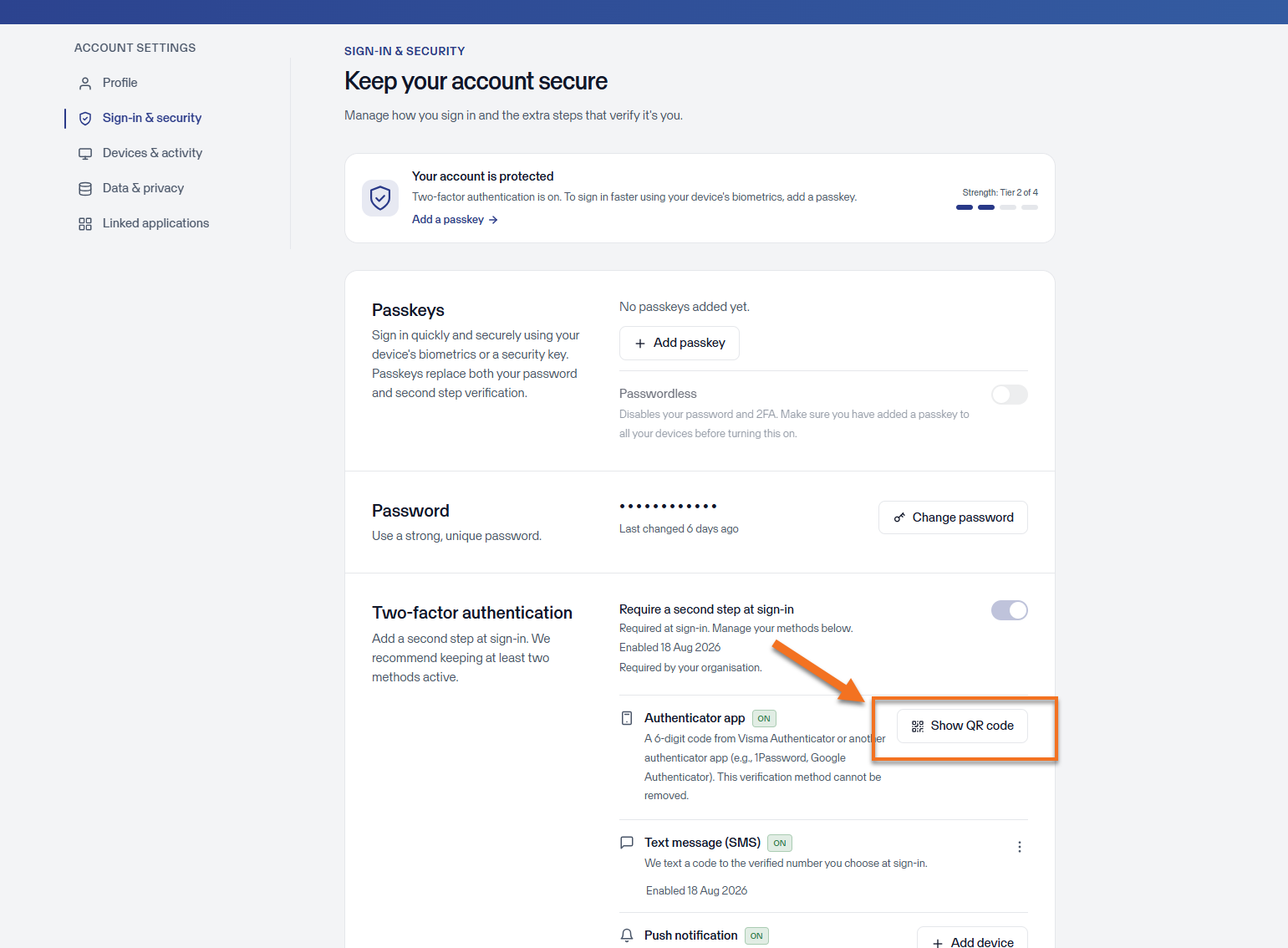
- Sign in at accountsettings.connect.visma.com.
- In the left-hand menu, go to Sign-in and security.
- Under Two-factor authentication, find the Authentication app row and click Show QR code.
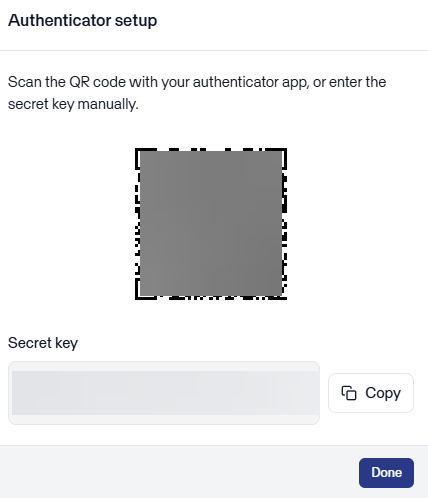
- Pair your device:
- On a phone: scan the QR code with your authenticator app.
- In a password manager on your computer: copy the text key shown next to the QR code and paste it into the 2FA or TOTP field of the matching item.
- Enter the 6-digit code that now appears to confirm the pairing.
Keep the app open on your phone while you pair. If you switch to something else halfway through, the pairing does not complete and you will be stuck at your next sign-in.
Do you use the Visma Authenticator app with push notifications? Then add your new phone on the same page, at Push notification, with the Add device button. Below that row you can see which devices are currently paired. A short verification code then appears on your computer; it must match the one shown on your phone.
Replacing your phone soon? Pair the new device while you still have the old one. That is a two-minute step that saves you a support request.
You can no longer reach your authenticator app
Your phone is lost, stolen or reset, or you deleted the app. You get back in with your one-time back-up code — the
one you received when you first set up two-step verification.
No longer have that back-up code? Then request a new one first. Email support@yuki.be with your email address and the name of your domain, and we will send you a new code. Once you have it, follow the same steps below.
- On the sign-in screen, click Try another way.
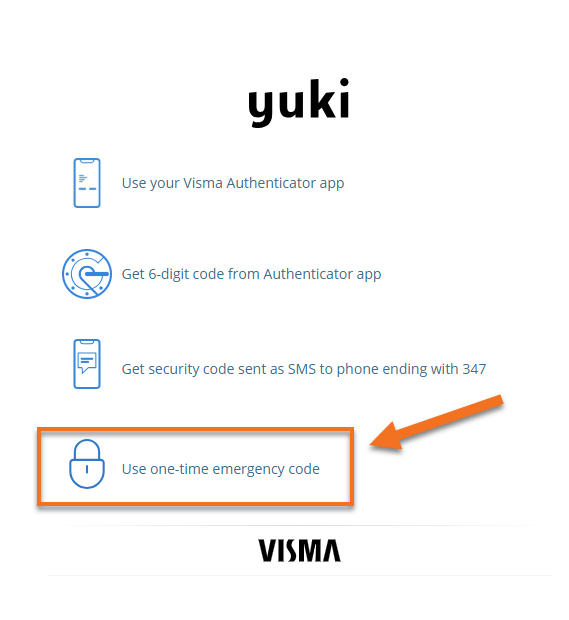
- Choose Use back-up code.
- Enter your back-up code.
- Now choose the option that matches your situation. Pay close attention here, the difference matters:
- I have temporarily lost access to my Authenticator app — your app still works, you just don't have it with you. This signs you in once and nothing changes in your settings. You immediately receive a new back-up code; copy it and save it.
- I have permanently lost access to my Authenticator app — your phone is lost, stolen or wiped. Your setup is fully erased and you then pair again, following the steps at Pairing a new device or a new app.
So do not choose the second option if you still have your app: you would erase your whole setup for nothing. If you have genuinely lost your phone, the second option is the right one.
Changing your settings
Everything below is set on accountsettings.connect.visma.com, in the left-hand menu under Sign-in and security.
- Adding SMS as a back-up method. Under Profile, add a phone number, even if you skipped that step earlier. You can store up to three numbers. The SMS also contains a reference number matching the one on your screen, so you know the code belongs to your sign-in attempt.
SMS is a back-up method, not a replacement: the authentication app remains your main method and cannot be removed. Note that a code sent by SMS is valid for 5 minutes, not 30 seconds like the one from your app.
- Not entering a code at every sign-in. If you always work on the same computer, tick Remember me for 30 days at Remembered device. This can be set up under Sign-in and security. Only do this on a device you use alone, never on a shared or public computer.
Are you still asked for a code at every sign-in after that? Let us know at support@yuki.be.
Saving or replacing your back-up code
The one-time back-up code is the difference between getting back in yourself and having to wait for support. Keep it somewhere safe: in a password manager, or printed in a place nobody else can reach.
Have you used it, or no longer know where it is? Then create a new one while you can still sign in:
- Go to accountsettings.connect.visma.com and open Sign-in and security.
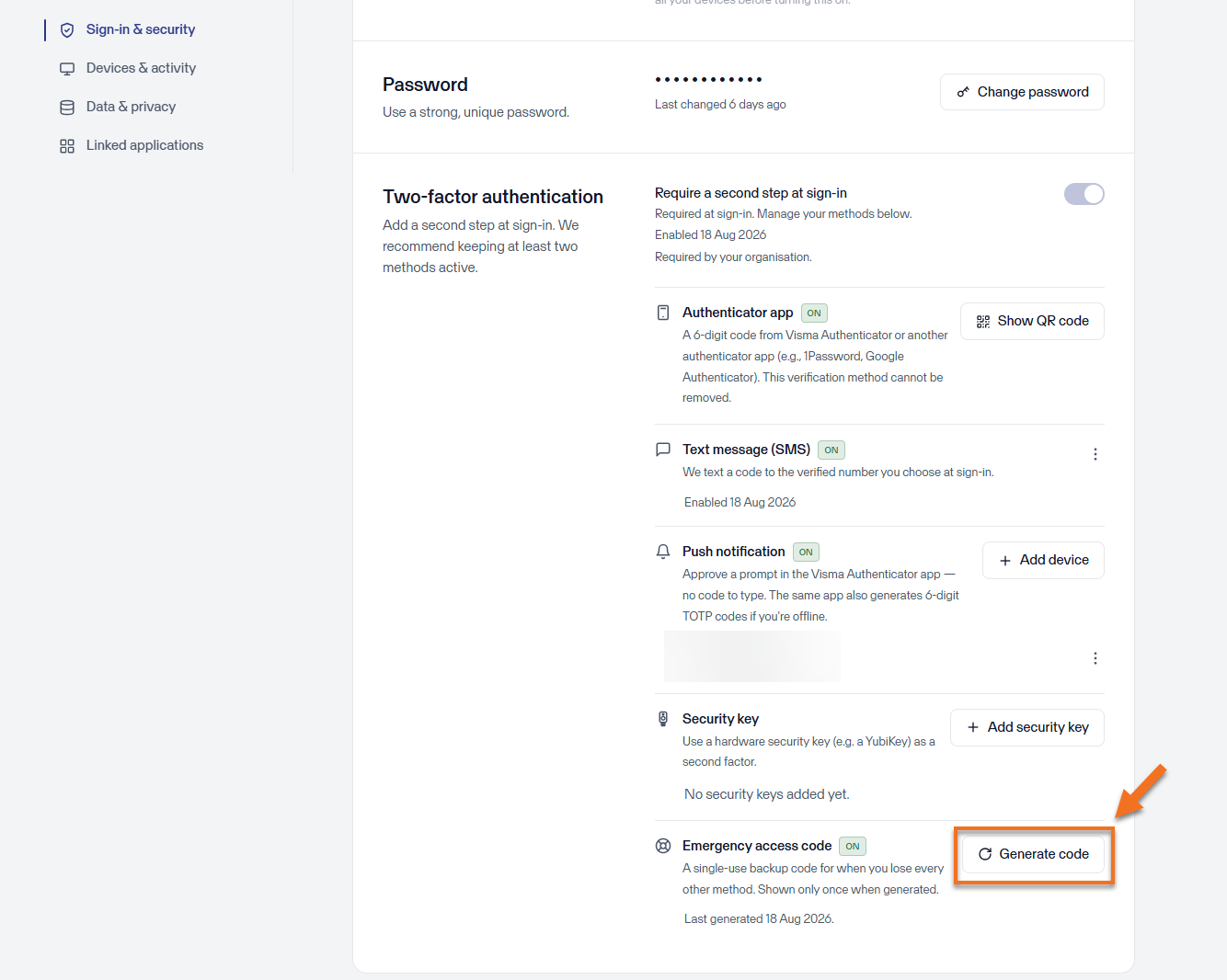
- Under Two-factor authentication, find the Emergency access code row and click Generate code.
- Copy the code straight away and save it. It is only shown once.
Below that row you can see when your last code was created, so you can tell whether you ever had one.
Still stuck?
Can you no longer log in and have you lost your code? Send an email to support@yuki.be with your email address and the name of your domain. We will then generate a new one for you.